How to Add Animated Captions to Video Like TikTok - Free AI Tools
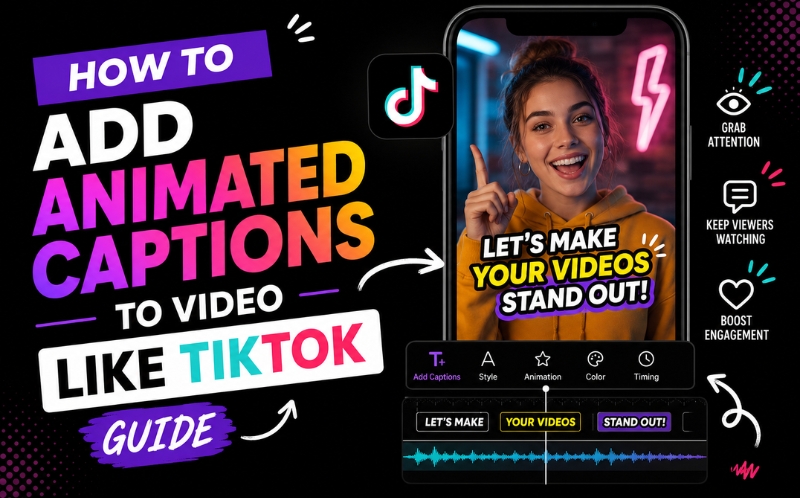
Learning how to add animated captions to video like tiktok is the single most requested editing skill among creators in 2026. Those eye-catching word-by-word highlights, bold colors, and bouncy text animations are not just aesthetic choices – they directly increase watch time by up to forty percent and engagement rate by keeping viewers locked on every spoken word. The good news is that you no longer need CapCut or manual keyframing to achieve this effect. AI-powered tools can now generate the exact caption animation style you see on viral TikToks, automatically. This guide shows you how to add animated captions to video like tiktok using free tools in under sixty seconds.
Why Animated Captions Drive Higher Engagement Than Static Text
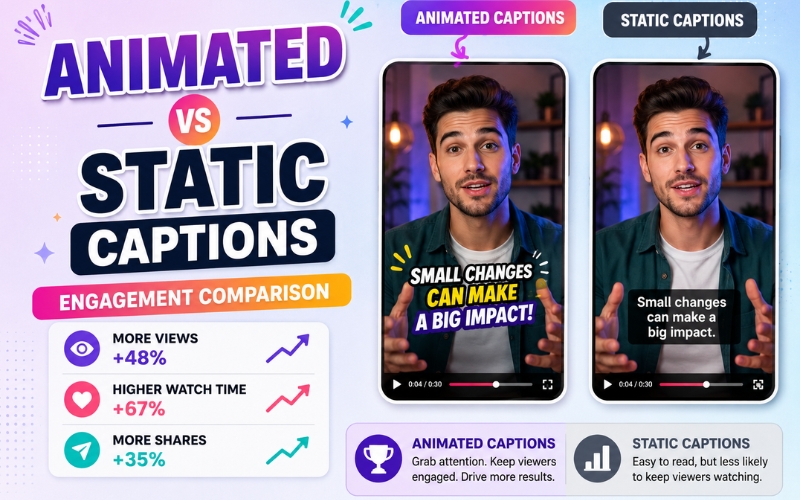
Static captions display a block of text that sits passively on screen. Animated captions highlight each word as it is spoken, creating a kinetic typography effect that guides the viewer’s eye and creates a reading rhythm synchronized with speech. This is why learning how to add animated captions to video like tiktok matters – the animation itself is an engagement mechanism.
Data from TikTok and Instagram shows that videos with animated word-by-word captions achieve thirty to forty percent higher completion rates compared to videos with static subtitles. For sound-off viewing – which accounts for eighty percent of mobile video consumption – animated captions are the primary driver of viewer attention. The word highlight effect creates visual motion even in talking-head content that might otherwise feel static, making every video more dynamic and scroll-stopping.
Word by Word Caption Effect for Videos - Three Methods
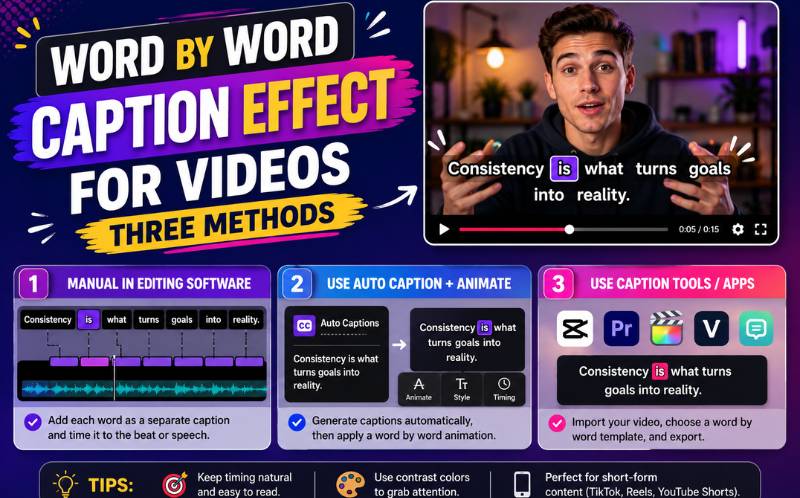
There are three ways to create the word by word caption effect for videos:
- Manual keyframing — In Premiere Pro, After Effects, or DaVinci Resolve, you manually animate each word’s color, size, or opacity to change at the exact moment it is spoken. This produces custom results but takes one to two hours per sixty-second clip. Only feasible for high-production content with dedicated editors.
- CapCut auto captions — CapCut’s free auto-caption feature generates word-by-word captions with basic animation templates. It is popular among TikTok creators for its simplicity. However, language support is limited to about twenty languages, accuracy drops with accents or background noise, and styling options are basic. The word by word caption effect for videos in CapCut works but lacks professional customization.
- AI-powered caption generators — ReframeX’s AI caption generator produces the word by word caption effect for videos with ninety-eight percent accuracy in 160+ languages. The offers full control over fonts, colors, background, animation speed, and word highlight style. Captions are generated in under thirty seconds and can be applied to individual clips or batches. This is the most scalable approach.
For creators producing three or more videos per week, the AI approach is the clear winner for achieving the word by word caption effect for videos consistently.
AI Animated Subtitle Generator for Reels — Tool Comparison
Finding the right ai animated subtitle generator for reels depends on your language needs, styling requirements, and publishing workflow:
| Tool | Word Highlight | Languages | Custom Fonts | Animation Styles | Free Tier |
|---|---|---|---|---|---|
| ReframeX | Yes — word-by-word | 160+ | Yes — custom upload | 12+ animated templates | Free, no watermark |
| CapCut | Yes — basic | 20+ | Limited | 5–6 templates | Free, watermark |
| VEED.io | Yes — word-by-word | 30+ | Yes | 8+ templates | 10 min/month free |
| Kapwing | Yes — basic | 70+ | Limited | 4–5 templates | Watermark on free |
| Submagic | Yes — advanced | 15+ | Yes | 10+ templates | 3 videos/month free |
When evaluating an ai animated subtitle generator for reels, prioritize language support and animation variety. ReframeX offers the widest language coverage and the most caption templates without watermarks on the free tier.
Trending Caption Style for TikTok 2026 — What’s Working Now
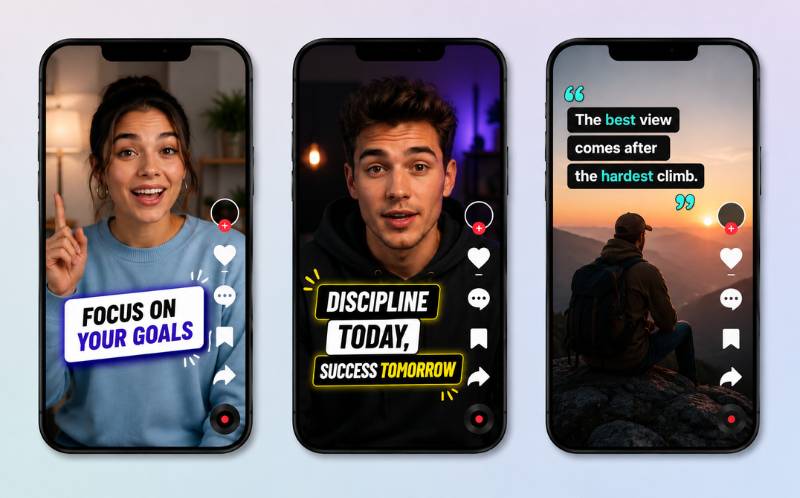
The trending caption style for tiktok 2026 has evolved from simple white text to bold, colorful, animated typography that matches the energy of the content. Here are the styles dominating TikTok right now:
The Hormozi style — Bold sans-serif font, yellow or green highlight on the active word, black background bar. Named after entrepreneur Alex Hormozi who popularized this aggressive, high-contrast look. This trending caption style for tiktok 2026 works best for educational, business, and motivational content.
The pastel pop style — Soft rounded fonts, pastel highlight colors, no background bar. Popular for lifestyle, wellness, and beauty creators. The word highlight appears as a gentle color change rather than a dramatic flash.
The minimal clean style — Simple white font, subtle word-by-word opacity animation, transparent background. Used by news creators, journalists, and professional brands who want captions without the flashy aesthetics. This trending caption style for tiktok 2026 prioritizes readability over visual impact.
Reframex’s caption editor includes templates for all three trending styles plus the ability to create fully custom styles with your brand fonts and colors.
How to Make Captions Highlight Each Word — Step-by-Step Tutorial
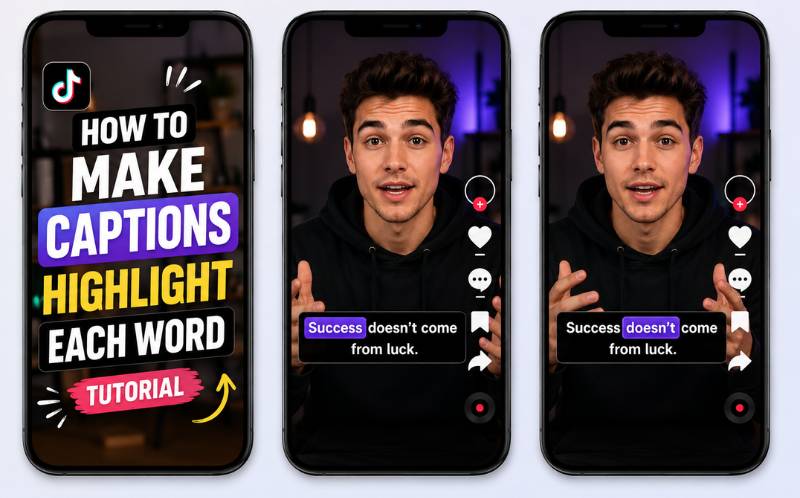
Here is the exact process for how to make captions highlight each word using Reframex
Upload your video to Reframex . Navigate to the captions panel and click Generate. The AI transcribes your audio with word-level timing precision in under thirty seconds. Every word is individually timestamped, which is what enables the highlight effect.
Open the caption style editor. Select a highlight template or create a custom one. Set your base font color (the inactive words), your highlight color (the active word), and your animation type (color change, scale pop, underline, or background flash). This is how to make captions highlight each word with full creative control.
Preview the animation on your video. Adjust highlight speed if words are highlighting too fast or slow. The timing is automatically synced to your speech, but you can fine-tune individual words if needed. Save your style as a template for future videos. Understanding how to make captions highlight each word and saving your preferred style means every future video gets the same branded treatment in one click.
Platform-Specific Animated Caption Specs for 2026
Each platform has slightly different optimal settings for animated captions. When you add animated captions to video like tiktok, the styling that drives maximum engagement varies by where you publish.
For TikTok, use bold sans-serif fonts at thirty-two to forty point size with bright highlight colors like yellow, green, or cyan against a dark semi-transparent background bar. Word-by-word highlighting speed should match natural speech pace. TikTok viewers expect fast, energetic caption animation that matches the platform’s culture. Position captions in the center-lower third of the frame to avoid overlapping with TikTok’s UI buttons on the right side.
For Instagram Reels, slightly more refined typography works better. Clean sans-serif or modern serif fonts at twenty-eight to thirty-six point size with softer highlight colors. Instagram’s audience skews slightly older and more brand-conscious than TikTok, so animated captions should feel polished rather than flashy. Position captions in the lower quarter to avoid interfering with the Instagram username and music label overlays at the top.
For YouTube Shorts, prioritize readability over style. Larger font sizes at thirty-six to forty-four points with high-contrast white or yellow text. YouTube Shorts viewers tend to watch longer clips, so caption fatigue is a real concern — avoid overly aggressive animation that becomes distracting over thirty to sixty seconds. Subtle word color changes work better than dramatic scale or bounce effects.
ReframeX’s caption editor includes platform-specific presets for TikTok, Reels, and Shorts, so you can apply the optimal animated caption settings for each platform with one click. This is the fastest way to add animated captions to video like tiktok with platform-native styling.
Expert Tips for Animated Captions That Boost Performance
Once you know how to add animated captions to video like tiktok, apply these advanced tips:
- Match animation energy to content tone — Fast, bold highlights for high-energy content. Soft, subtle highlights for calm or professional content. Mismatched animation feels awkward and reduces viewer trust.
- Keep no more than two lines on screen at once — Mobile screens are small. Three or more lines of caption text overwhelm the viewer and reduce readability.
- Use high contrast always — Light text on dark videos, dark text on light videos. Add a semi-transparent background bar if your video has mixed brightness. Visibility is more important than style.
- Test one keyword in a different color — Highlight the most important word in each sentence with a contrasting color. This draws attention to key concepts and improves information retention.
- Cross-post captioned videos to Reels and Shorts — The same animated captions that work on TikTok perform equally well on Instagram Reels and YouTube Shorts. Use Reframe’s scheduling to distribute everywhere.
These expert practices combined with understanding how to add animated captions to video like tiktok create professional, high-performing content every time.
Frequently Asked Questions
How do I add animated captions to video like tiktok for free?
Upload your video to ReframeX, click Generate Captions, and select an animated word-highlight template. The AI generates perfectly synced animated captions in under thirty seconds. This is how to add animated captions to video like tiktok with zero cost on the free tier.
What is the word by word caption effect for videos?
The word by word caption effect for videos is an animation style where each word highlights, changes color, or scales as it is spoken. This kinetic typography technique guides the viewer’s eye and increases watch time by making captions visually dynamic rather than static.
What is the best ai animated subtitle generator for reels?
ReframeX is the best ai animated subtitle generator for reels with 98%+ accuracy, 160+ languages, twelve animated templates, custom font support, and no watermarks on the free tier. Other options like CapCut and Submagic offer fewer languages and limited free tiers.
What is the trending caption style for tiktok 2026?
The three dominant styles in 2026 are the Hormozi style with bold yellow highlights, the pastel pop style with soft rounded fonts, and the minimal clean style with subtle opacity animation. The trending caption style for tiktok 2026 depends on your content niche and brand aesthetic.
How to make captions highlight each word in my videos?
Use an AI caption generator like ReframeX that timestamps every word individually. Select a word-highlight animation template, choose your highlight color, and preview. The AI syncs the highlight to your speech automatically. This is how to make captions highlight each word without manual keyframing.
Do animated captions work on Instagram Reels and YouTube Shorts too?
Yes. The same animated caption styles that perform well on TikTok work identically on Instagram Reels and YouTube Shorts. Burn the captions into your video file and the animation plays on every platform regardless of their native caption support.
Start Adding Animated Captions to Your Videos
Now that you know how to add animated captions to video like tiktok, try ReframeX free and create your first animated caption video in under sixty seconds. [LINK: Get started free → /] — no credit card, no watermark.
AUTHOR BIO
Written by the ReframeX Content Team — video production specialists, SEO strategists, and AI technology experts with over fifteen years of combined experience in video content optimization. The team has helped creators and media organizations process millions of videos across 160+ languages.
Animated captions are no longer a nice-to-have — they are the standard for professional short-form content. Learning how to add animated captions to video like tiktok gives you a competitive edge on every vertical platform.