
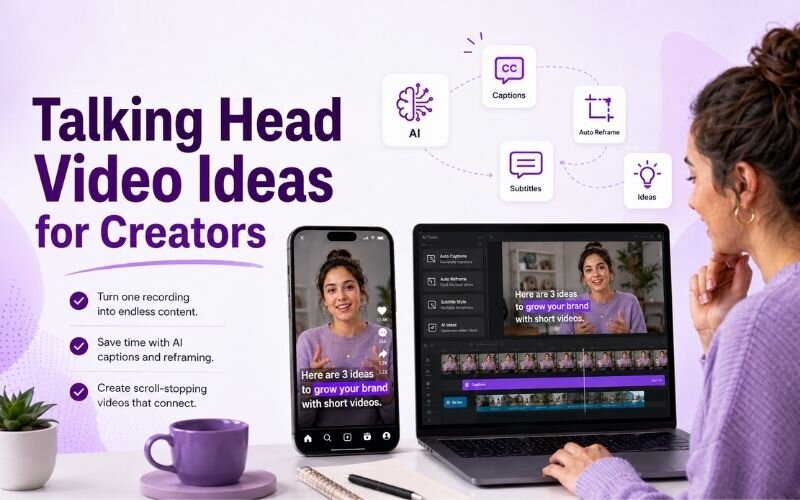
How to Add B Roll to Videos Automatically With AI — Fast Workflow
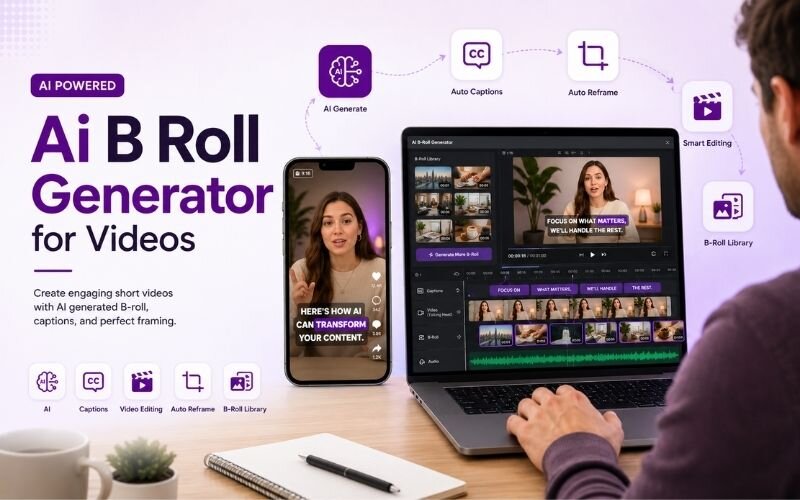
Understanding how to add b roll to videos automatically with ai removes the slowest step in video editing. Finding and placing supporting footage used to take longer than the edit itself. An ai b roll generator for videos now handles it in seconds. This guide covers the workflow using ReframeX.
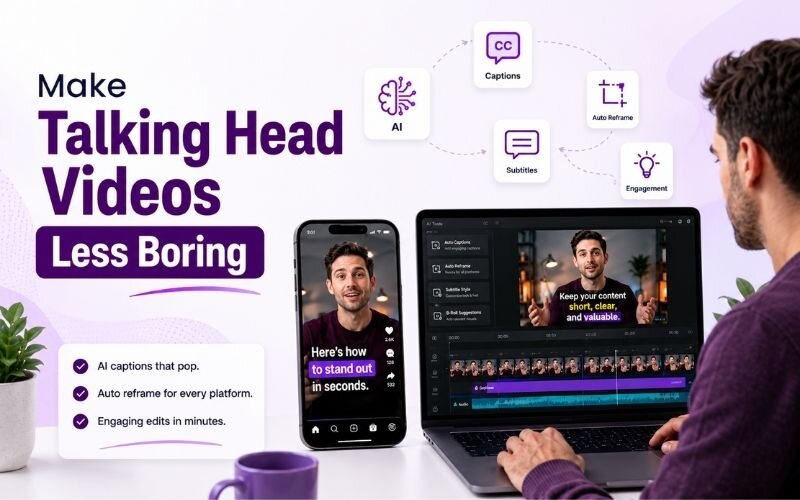
Why B Roll Is the Highest-Impact Edit You Are Skipping
B roll is the supporting footage layered over your main audio. When you mention a product, the viewer sees it. When you cite a place, they visit it briefly.
You can add b roll to videos automatically with AI by letting the tool detect keywords in your speech and overlay matching footage at the right moments, boosting watch time without manual editing.
It works because it converts telling into showing. Retention climbs because the frame keeps delivering new information instead of repeating the same shot.
Most creators skip it purely because sourcing clips is tedious. That is exactly the friction AI removes, which is why how to overlay b roll on talking videos is now a beginner-level task.
How Do You Add B Roll to Videos Automatically With AI?
The automated workflow for how to add b roll to videos automatically with ai runs like this:
- Step 1: Upload your main talking footage. The system transcribes the audio so it knows what is being said and exactly when.
- Step 2: AI scans the transcript for concrete nouns and visual concepts — products, locations, actions, objects worth showing on screen.
- Step 3: Matching footage is suggested for each moment, pulled from a stock library or your own uploaded media folder.
- Step 4: Review and approve the suggestions. Keep the ones that genuinely help; reject anything generic or loosely related to your point.
- Step 5: Export with captions applied. Reframe to vertical with Smart Crop if publishing to Shorts, Reels, or TikTok.
The reviewing stays human; only the searching is automated. That is what makes an ai b roll generator for videos genuinely useful.
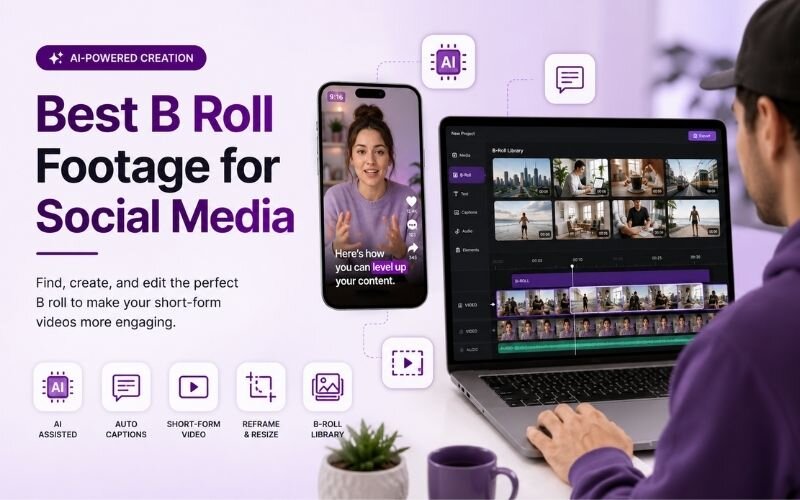
Best B Roll Footage for Social Media — What to Use and When
Choosing the best b roll footage for social media matters more than how much you use:
- Screen recordings — unbeatable for software, apps, and anything digital. Specific, accurate, and instantly clear to the viewer.
- Your own product shots — always stronger than stock. Real footage of the actual thing builds trust that generic clips cannot.
- Process footage — hands working, packing, building, cooking. Movement holds the eye and feels authentic rather than staged.
- Simple stock for abstract ideas — growth, teamwork, travel. Use sparingly; overuse of stock is the fastest way to look generic.
- Text and graphic overlays — for numbers and names, a clean animated callout beats any literal stock clip.
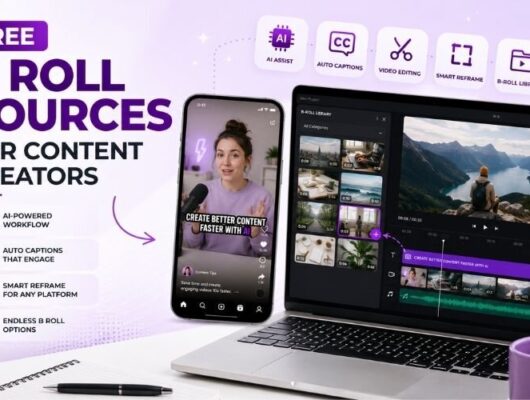
Free B Roll Sources for Content Creators — Compared
Where to find footage without a budget. These are the practical free b roll sources for content creators:
| Source | Cost | Quality | Licence notes |
|---|---|---|---|
| Your own footage | Free | Best — real | Fully yours |
| Pexels / Pixabay | Free | Good | Check per-clip terms |
| Screen recordings | Free | Excellent for tech | Yours |
| AI-generated clips | Free tier | Improving fast | Check tool terms |
| Paid stock libraries | Subscription | High | Licensed |
Always verify licence terms per clip. Free does not automatically mean cleared for commercial use.
How Do You Overlay B Roll on Talking Videos Correctly?
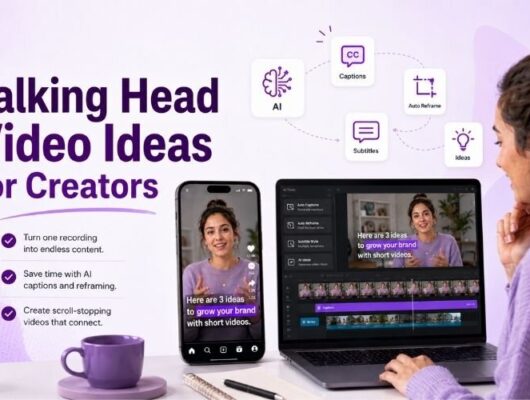
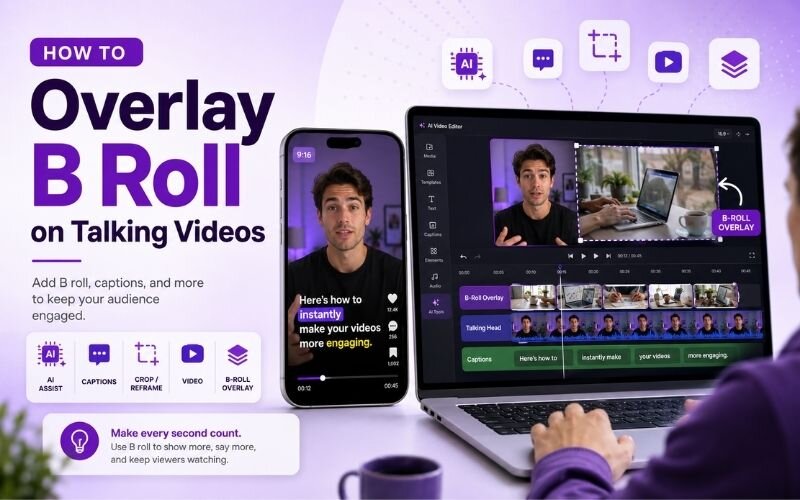
The rule for how to overlay b roll on talking videos is simple: cut to b roll when you reference something concrete, and return to your face when you make a point.
Keep each overlay between two and five seconds. Long stretches of b roll disconnect the viewer from the speaker, and the human connection is doing most of the persuasive work.
Always keep the original audio running underneath. Never mute your voice for the overlay. Then finish with animated captions so the message survives on mute.
Expert Tips for AI B Roll That Looks Deliberate
These refinements make automated overlays feel intentional rather than random:
- Reject anything vaguely relevant. A loose match is worse than no b roll, because it signals filler to the viewer.
- Match colour grading between overlay and main footage. Mismatched tone is the clearest sign of stock-heavy editing.
- Cut on the word, not after it. The overlay should land as the reference is spoken, not a beat later.
- Build a personal footage library. Every shoot, record thirty seconds of extra hands, workspace, and product detail shots.
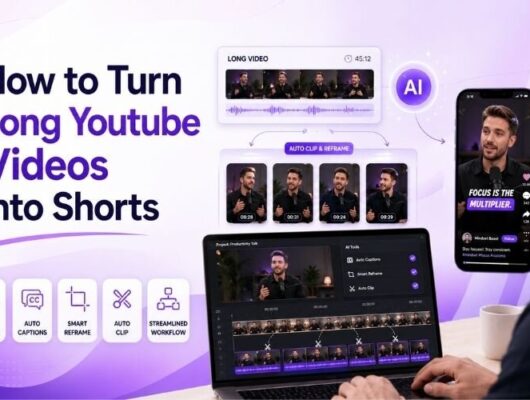
- Repurpose the finished video into clips with the AI clip generator so the b roll work pays off across several posts.
Used well, b roll is invisible — viewers only notice the video felt easy to watch. See our faster editing guide for the surrounding workflow.
Frequently Asked Questions
How do I add b roll to videos automatically with AI?
Upload your talking footage, let AI transcribe and detect visual references, review the suggested clips, approve the good ones, and export. That is how to add b roll to videos automatically with ai in minutes.
What is the best AI b roll generator for videos?
Look for transcript-based matching rather than keyword guessing, plus the ability to use your own media library. A strong ai b roll generator for videos suggests footage timed to what you actually said.
What is the best b roll footage for social media?
Screen recordings, your own product shots, and process footage outperform stock. The best b roll footage for social media is specific and real rather than generic.
How do I overlay b roll on talking videos?
Cut to b roll on concrete references, keep each overlay two to five seconds, return to your face for key points, and never mute your original audio.
Where can I find free b roll?
Your own recordings, screen captures, and libraries like Pexels or Pixabay. Always verify licence terms per clip before commercial use.
How much b roll should a video have?
Roughly twenty to forty percent of runtime for most talking-head content. Enough to add variety, not so much that the viewer loses the speaker.
TESTIMONIAL
“B roll was never a creative problem. It was a search problem. Once the searching is automated, showing instead of telling costs almost nothing.”
— Sonali, ReframeX Content Team
Add B Roll Without the Hours of Searching
Now that you know how to add b roll to videos automatically with ai, try ReframeX free for AI clip detection, captions, and vertical reframing. No credit card, no watermark.
Sonali
Written by Sonali — post-production specialist with eight years editing branded video, focused on AI-assisted workflows that reduce manual sourcing and speed up delivery for content teams.