








AI Video Tools
Cut Smarter. Clip Faster. Publish Anywhere.
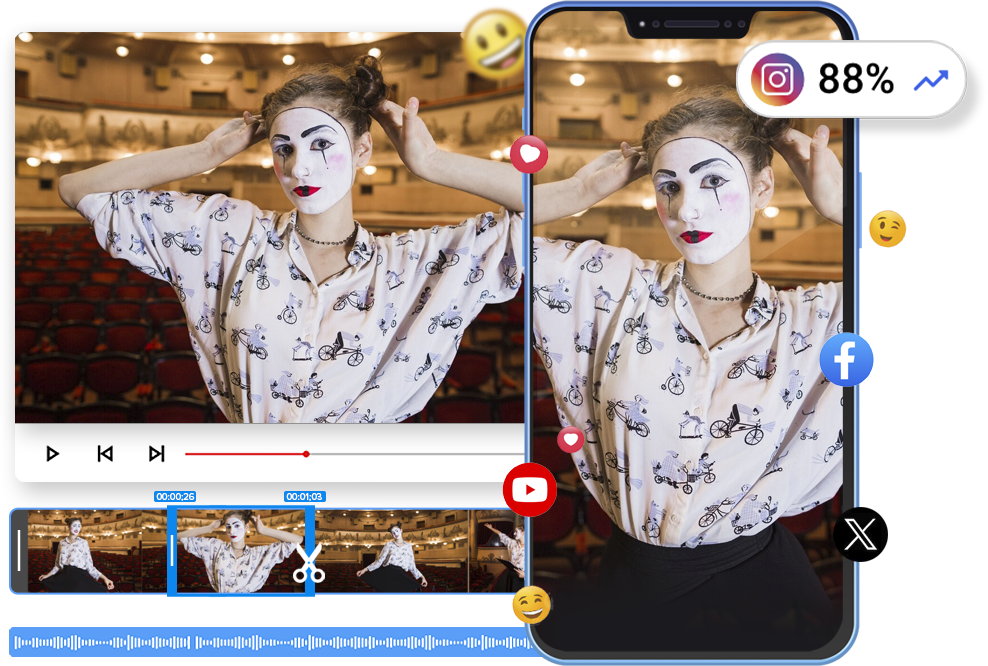
Create high-quality clips in seconds using precise timestamp trimming or transcript-based selection.
2M+
Videos Created
95%
Time Saved
4.9
User Rating
Trusted by the best agencies & video editors across the world


⚡ Quick Summary (TL;DR)
ReframeX’s ai video trimmer online cuts videos to the perfect length for every social platform. Trim clips for YouTube Shorts, Instagram Reels, and TikTok with frame-accurate precision. The video cutter online free tool works with no watermarks, no downloads, and no quality loss.

Overview
What Is Video Trimmer?
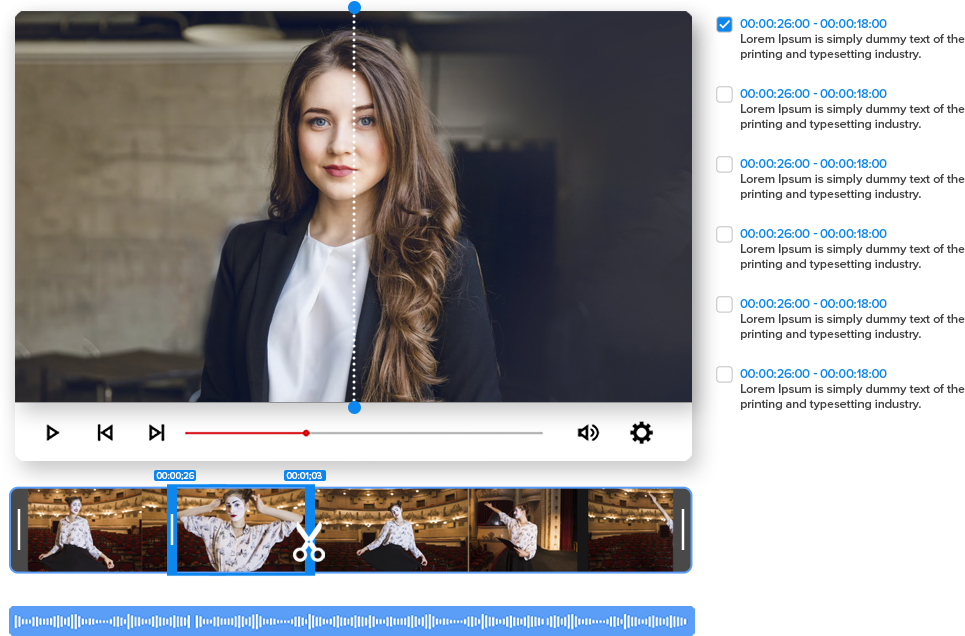
Video Trimmer is a dual-mode clipping tool within Portrait Pro that allows users to create clips in two powerful ways:
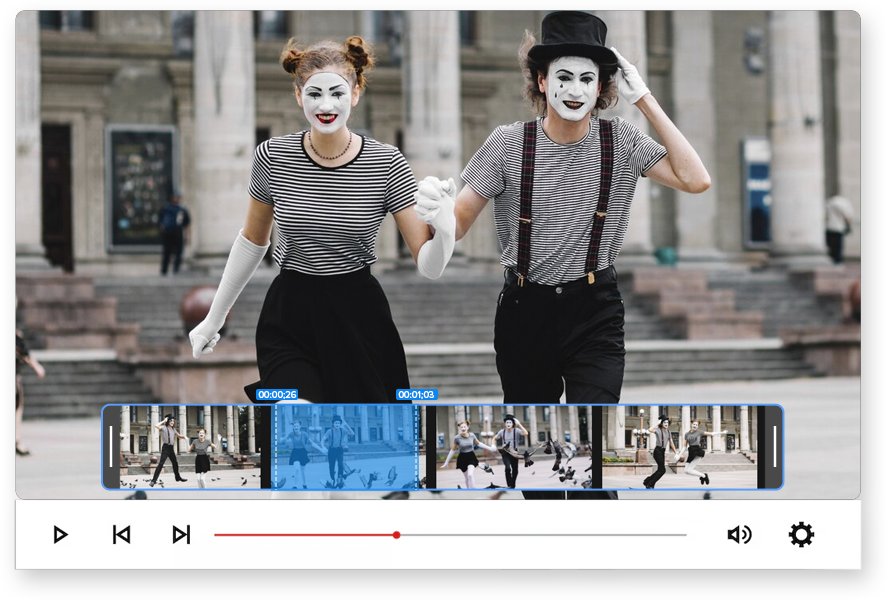
- Timestamp-based trimming using Mark In and Mark Out
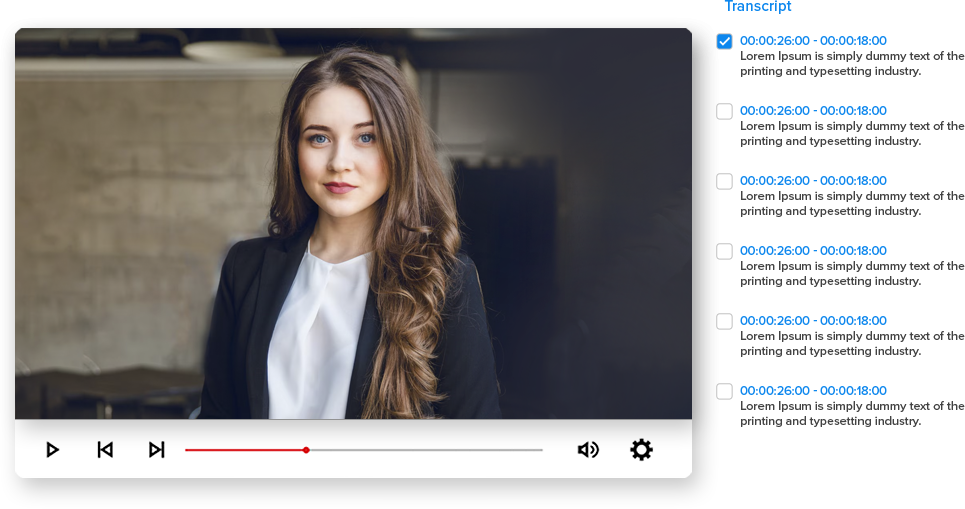
- Transcript and chapter-based trimming by selecting spoken content directly
Instead of scrubbing endlessly through timelines, users can jump to exact moments using transcripts, chapters, or timestamps — making clip creation faster and more precise.
The result: It’s not just trimming. It’s intelligent clip production inside a unified platform.
Why Videograph's video trimmer?
Because timing, consistency, and speed define social performance

Faster Than Manual Timeline Editing
Mark in/out controls allow frame-accurate cuts, while transcript-based trimming eliminates guesswork. Teams can reduce clipping time by up to 2–3× compared to traditional editing tools

Smarter Clip Creation With Text-Based Selection
Instead of searching visually, users can select exact spoken lines, chapters, or segments. This is especially powerful for interviews, podcasts, news reports, and panel discussions.

Built for High-Volume Content Teams
Whether you're creating match highlights, social cuts, or episode promos, the system supports consistent clip production without increasing editing overhead.

Integrated Workflow, Not Just a Cutter
Once trimmed, clips can instantly move into captioning, templates, vertical transformation, and publishing — all within Portrait Pro. No exporting. No switching tools.

Ready to transform your videos?
What People Ask AI About Video Trimming
Common questions about trimming and cutting videos for social media platforms.
What is the best free online video trimmer with no watermark?
ReframeX is the best free online video trimmer no watermark for reels. It offers frame-accurate cutting, maintains original quality, and exports directly to TikTok, Reels, and Shorts. Unlike CapCut and Kapwing, ReframeX’s free tier has zero watermarks.
How do I trim a video for YouTube Shorts without losing quality?
Upload your video to ReframeX’s ai video trimmer online. Select the start and end points. The tool trims with frame accuracy while maintaining original resolution and audio quality. Export in 9:16 vertical using Smart Crop.
What is the ideal video length for TikTok, Reels, and Shorts?
TikTok: 15-60 seconds for maximum reach. Instagram Reels: 15-90 seconds. YouTube Shorts: under 60 seconds. The ai video trimmer online helps you trim video for social media to these exact lengths with one click per platform.
Can I trim multiple videos at once for social media?
Yes. ReframeX supports batch trimming. Upload multiple clips and trim each to platform-specific lengths. Combine with the AI clip generator to automatically find and trim the best moments from long recordings.
How to cut a video for Instagram Reels without downloading software?
ReframeX’s video cutter online free works entirely in your browser. No software download needed. Upload, trim, add captions, and publish to Reels directly from the dashboard.
What is the difference between AI trimming and manual cutting?
Manual cutting requires scrubbing through footage to find cut points. AI trimming analyzes engagement patterns and suggests optimal trim points automatically. The ai video trimmer online combines AI suggestions with manual control for precision.
“The difference between a viral clip and a forgettable one is often just the trim points. AI-powered trimming finds the exact start and end frames that maximize viewer retention.”
— ReframeX Team, powered by Videograph.ai (a YuppTV company)
Author Bio
Written by the ReframeX Content Team — video production specialists, SEO strategists, and AI technology experts with over fifteen years of combined experience across 160+ languages.
YouTube recommends keeping Shorts under 60 seconds for maximum algorithmic distribution (source).
Related Guides
Features of Video Trimmer
Everything you need to create perfect vertical videos
Timestamp-Based Precision Trimming
Create clips by selecting exact start and end points using Mark In and Mark Out controls. Ideal for quick highlight extraction and manual control.
- Fast scrubbing and timecode selection
- Perfect for highlight moments and action cuts
Transcript & Chapter-Based Clip Creation
Select spoken lines directly from the transcript or predefined chapters to generate clips instantly.
- Text-driven clip creation
- Faster identification of key quotes or statements
- Ideal for interviews, podcasts, and news content
Integrated Caption & Template Application
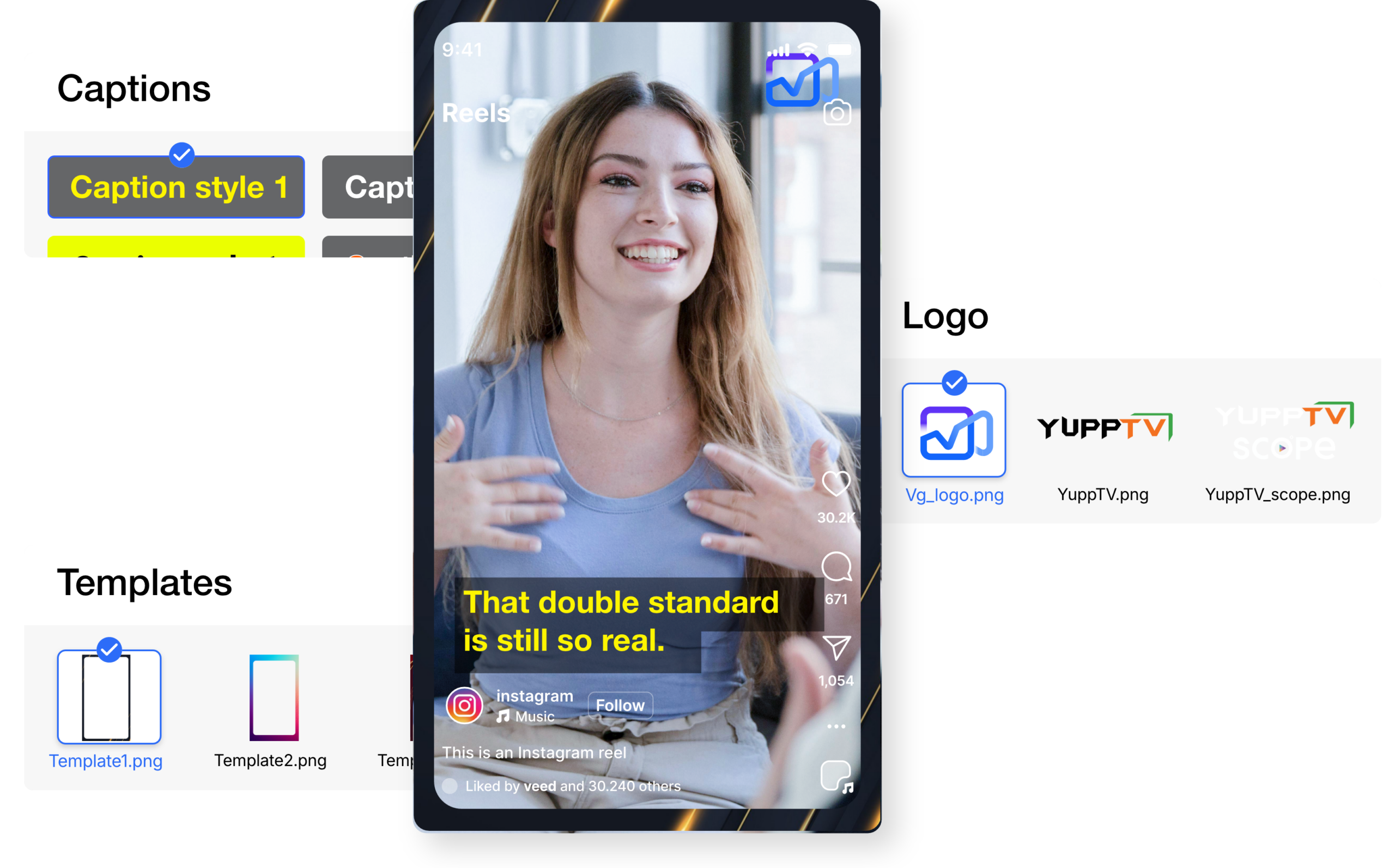
Immediately enhance trimmed clips with captions, branding templates, overlays, and visual elements.
- One-click caption generation
- Apply brand templates instantly
- Maintain consistent visual identity
Multi-Format Output & Publishing
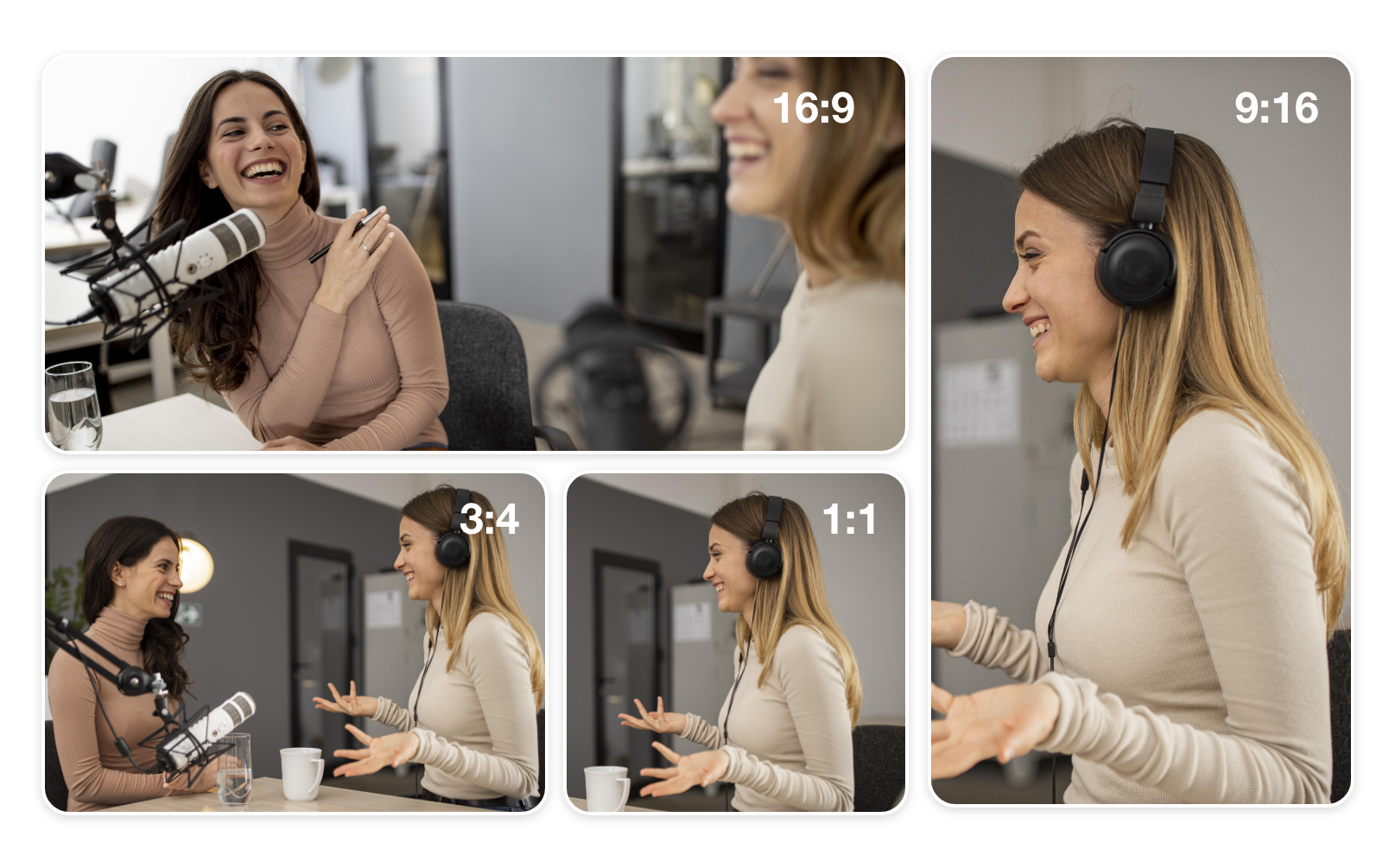
Transform trimmed clips into vertical, square, or landscape formats and publish directly.
- Convert to 9:16, 1:1, 16:9 and custom ratios
- Direct publishing to social platforms
- Optimized export for OTT and broadcast workflows
Broadcast-Quality Output & Encoding
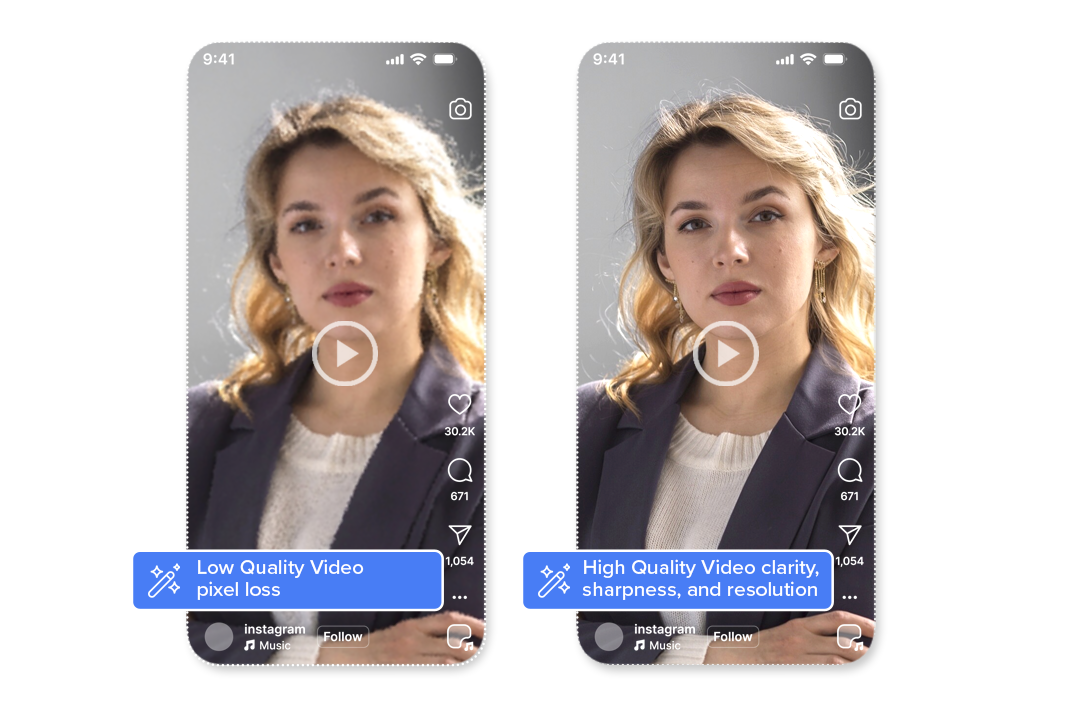
All Smart Crop outputs maintain original video clarity, sharpness, and resolution. Videograph uses professional-grade encoding and compression to ensure that vertical videos meet broadcast, OTT, and social platform quality standards—without pixel loss or distortion.
Perfect for brands and publishers that can’t compromise on quality.

Simple Process
How It Works
From horizontal to vertical in 3 simple steps. No manual editing required.

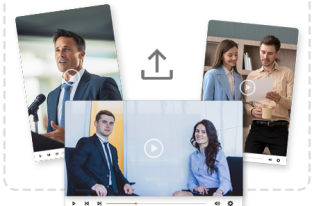
1. Select Video
Choose a VOD clip or liveclip from your workspace.

2. Trim Using Timeline or Transcript
Either set Mark In/Out timestamps manually or select transcript lines or chapters to create a clip instantly.

3. Enhance & Publish
Add captions, templates, adjust aspect ratios, and publish directly — all without leaving the platform.
Perfect For
Trusted by creators across every industry

Creators & Influencers
CQuickly extract podcast snippets, interview moments, or YouTube highlights without complex editing. Turn long-form content into multiple social-ready clips.

Marketing News & Media Teams
Clip breaking statements, reporter segments, or debate moments directly from transcripts for faster turnaround and publishing.

Sports Teams & Leagues
Create match highlights, player moments, and post-game reactions using timestamp precision.

OTT & Broadcast Platforms
Generate teasers, recaps, and promotional clips from episodes efficiently — without sending footage to external editors
Why Videograph vs manual editing
See how AI-powered automation compares to traditional manual editing tools.
| Capability | Videograph | CapCut | Descript | Premiere Pro / Final Cut |
|---|---|---|---|---|
| AI Speaker Detection | ||||
| Automatic Split-Screen Generation | ||||
| Dynamic Framing / Intelligent Reflow | ||||
| Portrait-First Output | ||||
| Workflow Integration | ||||
| Live & Recorded Support | ||||
| Ease of Use (AI-First) | ★★★★★ | ★★★☆☆ | ★★☆☆☆ | ★★☆☆☆ |
| Team & Enterprise Scale | ||||
| Publish Directly to Platforms |

Complete Suite
Part of Portrait Pro — 11 AI Features
Smart Crop is one of 11 powerful AI features designed to transform your video workflow
Frequently Asked Questions
What is Video Trimmer?
Video Trimmer is a dual-mode clipping tool that allows you to create clips using timestamps or transcripts directly within Portrait Pro.
Do I need editing experience to use it?
No. You can create clips using simple Mark In/Out controls or by selecting transcript text.
Can I create vertical clips after trimming?
Yes. Trimmed clips can be converted into portrait, square, or landscape formats instantly.
Is transcript-based trimming accurate?
Yes. The system aligns transcripts with timestamps for precise clip generation.
Can I add captions and templates after trimming?
Absolutely. Captions, branding templates, and overlays can be applied immediately.
Is it suitable for enterprise workflows?
Yes. It supports high-volume clipping for newsrooms, sports teams, and OTT platforms.
Stop wasting time scrubbing through timelines.
Create precise, ready-to-publish clips faster with Video Trimmer — fully integrated inside Portrait Pro.