

How to Repurpose Zoom Recordings Into Social Media Clips - AI Guide 2026
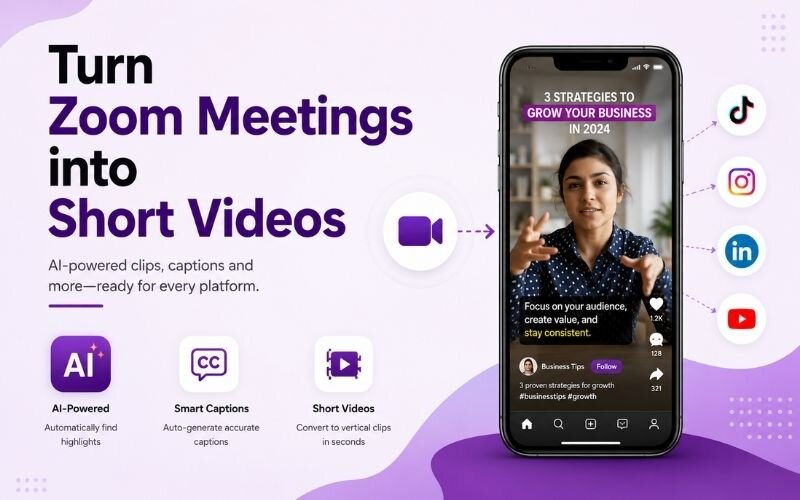
Knowing how to repurpose zoom recordings into social media clips turns every meeting you already record into weeks of content. Most teams let Zoom files sit unused in cloud storage. This guide shows the exact AI workflow to turn zoom meetings into short videos using ReframeX for clipping, reframing, and captions.

Why Zoom Recordings Are the Most Wasted Content Asset
Every company records Zoom calls. Webinars, training sessions, client Q&As, panel discussions, internal demos. Those files hold genuine expertise, explained clearly by real people.
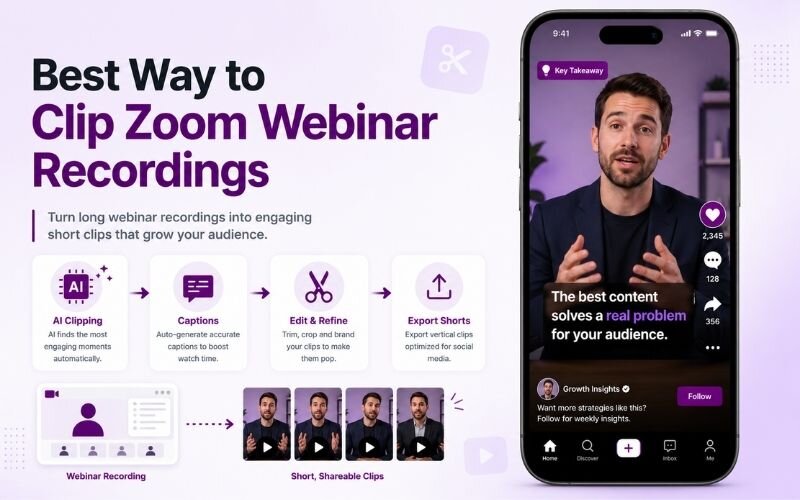
You can repurpose zoom recordings into social media clips by using AI to find the best moments, reframe them to vertical 9:16, and add captions. One zoom webinar becomes ten shorts.
Almost none of it gets published. The recordings sit in cloud folders because turning a 60-minute call into publishable clips felt like a full editing job nobody had time for.
That barrier is gone. AI now finds the strong moments, reframes them vertically, and captions them automatically. The best way to clip zoom webinar recordings takes minutes, not hours.
How Do You Repurpose Zoom Recordings Into Social Media Clips?
Here is the five-step workflow to how to repurpose zoom recordings into social media clips without manual scrubbing:
- Step 1: Record in gallery or speaker view at the highest resolution available — you will crop in later, so extra pixels give you room to reframe cleanly.
- Step 2: Download the MP4 from Zoom cloud storage, then upload it to the AI video clip generator so the system can scan the full recording.
- Step 3: Let AI surface the strongest self-contained moments — a sharp answer, a useful statistic, a clear explanation. Review the shortlist instead of the whole file.
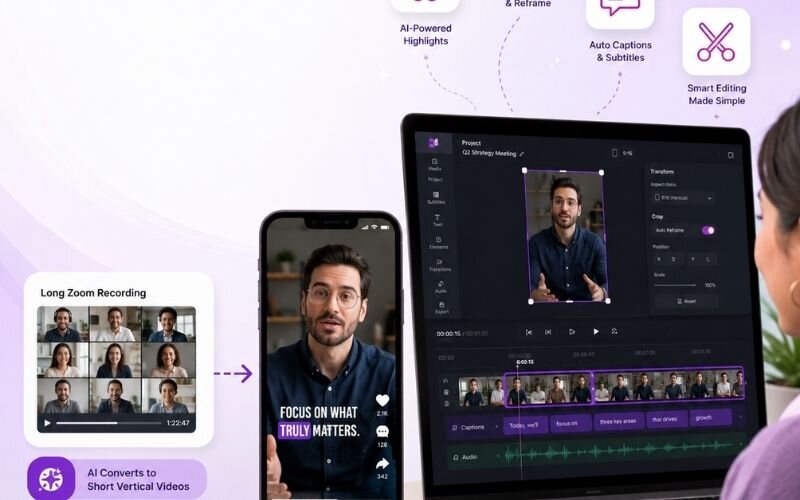
- Step 4: Reframe each clip to vertical 9:16 using Smart Crop, which keeps the speaker centred instead of slicing them out of frame.
- Step 5: Add animated captions and publish to Shorts, Reels, and TikTok. Most calls have imperfect audio, so captions are essential.
Follow this and you can extract highlights from zoom calls for reels in under fifteen minutes per recording.
Turn Zoom Meetings Into Short Videos — What Actually Works
Not every moment deserves a clip. These are the segments that perform when you turn zoom meetings into short videos:
- The direct answer — someone asks a question and gets a crisp, complete reply. Self-contained and instantly useful to a scrolling viewer.
- The surprising number — any concrete statistic or benchmark shared on the call. Specifics travel far better than general advice.
- The myth correction — a moment where someone says most people get this wrong. Contrarian takes stop the scroll reliably.
- The short story — a customer example or a lesson learned. Narrative holds attention longer than explanation alone.
- The step list — whenever a speaker counts through a process, that segment becomes a natural how-to clip.
Best Way to Clip Zoom Webinar Recordings — Tool Comparison
Comparing the practical options for the best way to clip zoom webinar recordings:
| Tool | Finds best moments | Vertical 9:16 | Captions | Free tier |
|---|---|---|---|---|
| ReframeX | AI auto-detect | Smart Crop | 160+ languages | Yes, no watermark |
| Manual editor | No — you scrub | Manual crop | Manual typing | Varies |
| Zoom built-in | No | No | Basic transcript | With plan |
| Generic trimmer | No | Manual | No | Limited |
AI detection is the difference. Everything else still requires you to watch the full recording first. You can also convert zoom recording to vertical video in the same pass.
What Is the Best Way to Convert Zoom Recording to Vertical Video?
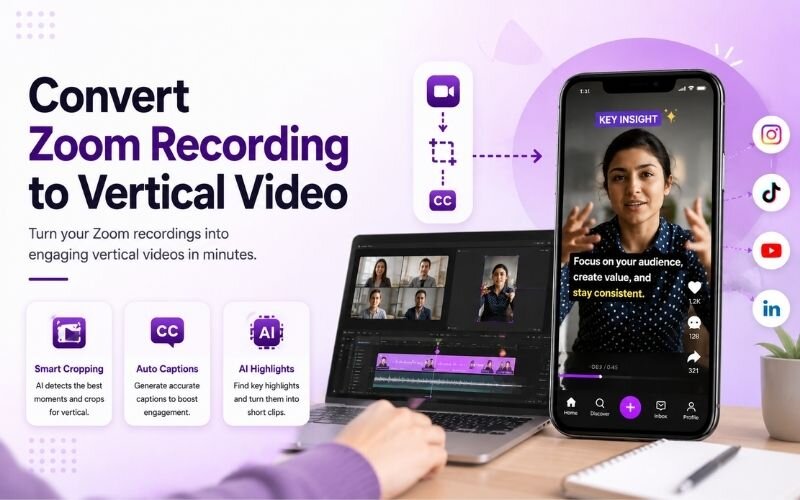
To convert zoom recording to vertical video, avoid a fixed centre crop. Zoom places speakers off-centre and shifts layout when people join, so a static crop will cut faces out of frame.
Subject-tracking AI solves it by following the active speaker across the whole clip. For two-person calls, a split screen stacks both people vertically so neither shrinks.
The same approach applies to any recorded session. See our webinar to social clips guide for the longer-form version of this workflow.
Expert Tips to Extract Highlights From Zoom Calls for Reels
Once the basics work, these habits make it faster to extract highlights from zoom calls for reels every week:
- Ask a summary question near the end of every call — you are effectively recording your own clip on purpose, and it always lands well.
- Note timestamps live. A quick message to yourself during the call saves scrubbing later, even with AI assistance.
- Batch process weekly. Run all recordings through in one session rather than one at a time. Fewer context switches, more output.
- Always caption. Meeting audio has echo, cross-talk, and mic differences. Captions rescue clips that would otherwise be unusable.
- Cross-post everything. One vertical clip works on Shorts, Reels, and TikTok — see repurposing across platforms.
These habits turn a passive archive into a working content pipeline. Pair them with our content repurposing framework for a full system.
Frequently Asked Questions
How do I repurpose Zoom recordings into social media clips?
Download the Zoom MP4, upload it to an AI clip generator, let it surface the best moments, reframe each to vertical 9:16, add captions, and publish. This is how to repurpose zoom recordings into social media clips in minutes.
Can I turn Zoom meetings into short videos automatically?
Yes. AI scans the full recording and shortlists self-contained moments, so you review a handful of suggestions instead of scrubbing the timeline. That is the fastest way to turn zoom meetings into short videos.
What is the best way to clip Zoom webinar recordings?
Use a tool that detects strong moments automatically, reframes to vertical, and captions in one pass. The best way to clip zoom webinar recordings avoids manual scrubbing entirely.
How do I convert a Zoom recording to vertical video?
Use subject-tracking AI rather than a fixed centre crop, because Zoom speakers sit off-centre. This lets you convert zoom recording to vertical video without cutting anyone out of frame.
How many clips can one Zoom call produce?
A 60-minute webinar typically yields eight to twelve usable clips. Internal team calls yield fewer, around three to five, but they are often the most authentic.
Do I need permission to publish Zoom clips?
Yes. Always get consent from everyone visible or audible before publishing, especially for client calls and internal sessions. Announce recording at the start.
TESTIMONIAL
“Your Zoom archive is not a storage problem. It is an unopened content library. The recordings are already made — the only question is whether you publish them.”
— Sangeeta, ReframeX Content Team
Start Turning Your Zoom Archive Into Clips
Now that you know how to repurpose zoom recordings into social media clips, try ReframeX free for AI clip detection, vertical reframing, and captions. No credit card, no watermark.
Sangeeta
Written by Sangeeta — content strategist specialising in B2B video repurposing, with nine years helping SaaS teams convert webinars and recorded calls into high-performing short-form social content.